Unzip the file and install the download on the computer you intend to use for speech prompting.
Software Registration
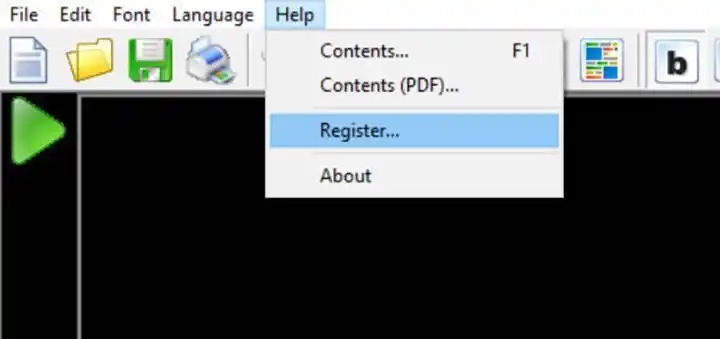
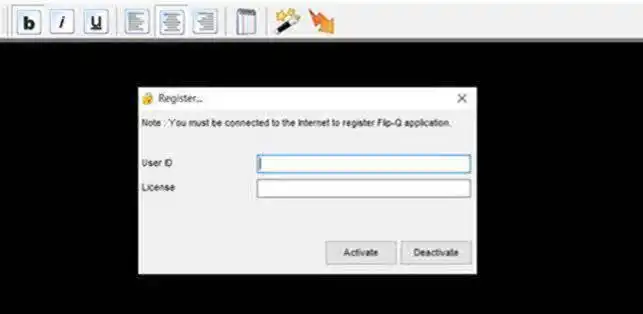
After installation, open the flipQ software and click on Help and select Register from the drop-down menu as shown below, and enter the User ID & License key. (You will be given User ID and License key via email).
Click on Activate.
Transfer Software to Another PC
Software Deactivation:- If you plan to use software on another computer, you will have to deactivate it on the system in which software is already activated.
To deactivate the software –
Open the software, click on Help and select Register from the drop-down menu, and enter the User ID & License key
Click on “Deactivate” button
Now you can register the software on another PC.
How to Use Speech Prompter Software
Preparing Speech Script
Prepare your script in MS Word. Adjust font type and size as per convenience.
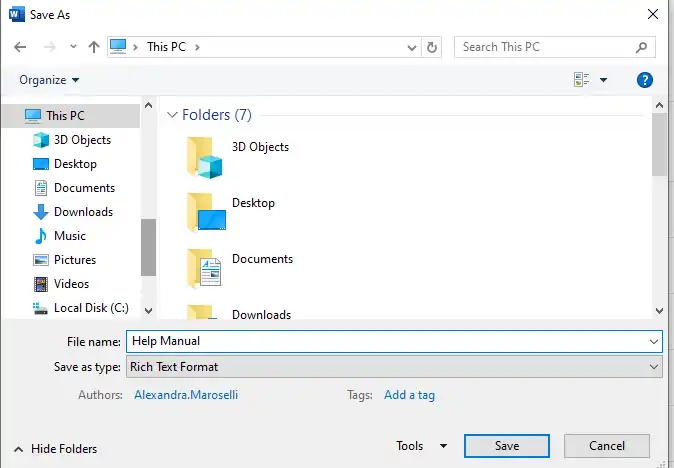
After making the script in MS Word, you require to save it in RTF (Rich Text Format) as follows
Go to file→ save as and select save as type → Rich Text Format and click on save.
Import Script in the Software:
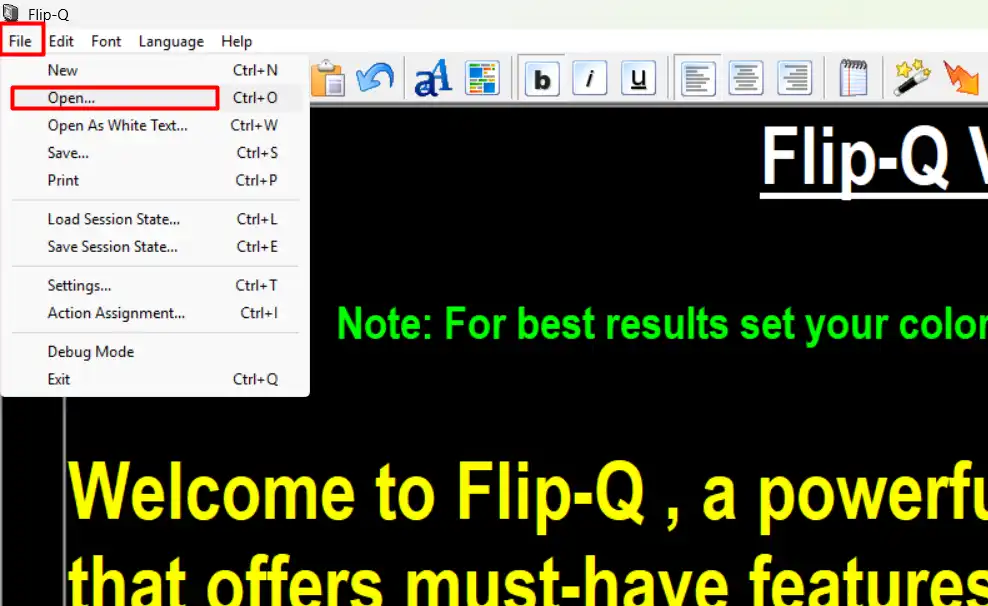
Click on File menu then click on Open.
Now select the saved RTF file and open it.
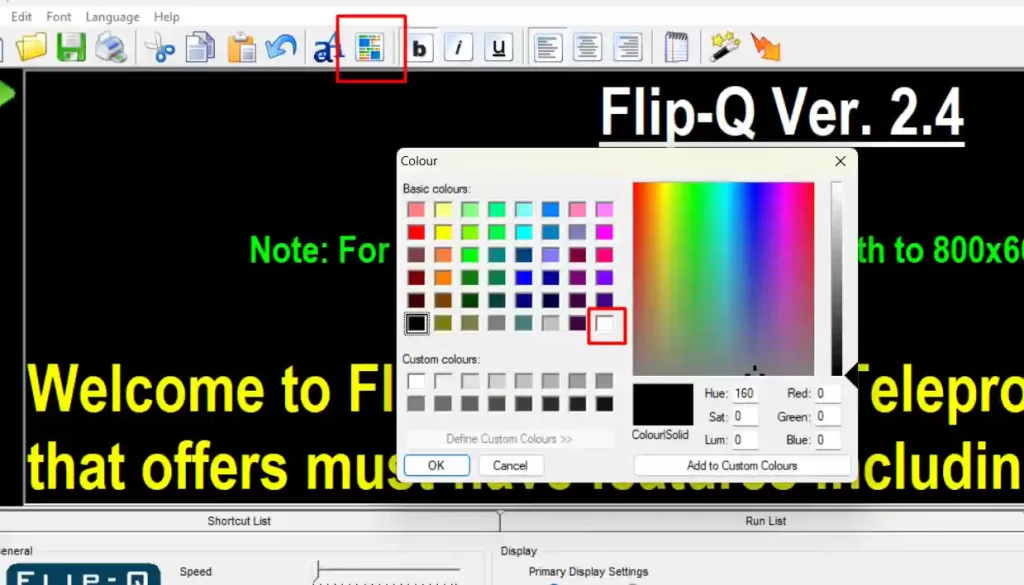
Select Background as White
Click on Back Color Palette, then select the white color from color panel and click OK.
Adjusting the Software Setting
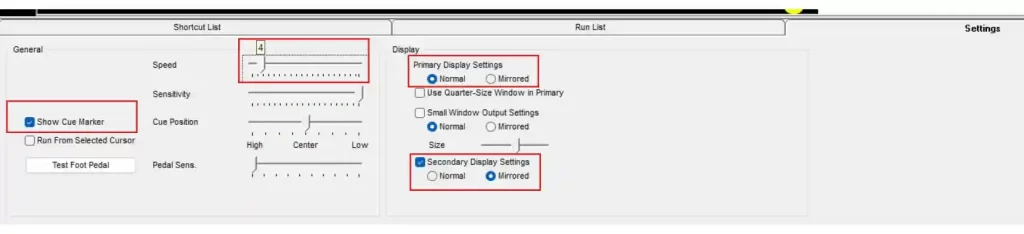
Increase the speed 3-4 points from speed slider.
Enable the Show Cue marker
From Display Setting – keep Primary Display Setting in Normal Mode.
Select Secondary Display Setting and click on Mirrored mode.
Enable Secondary Monitor
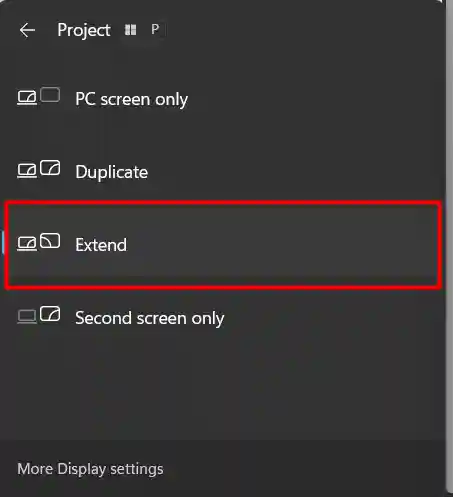
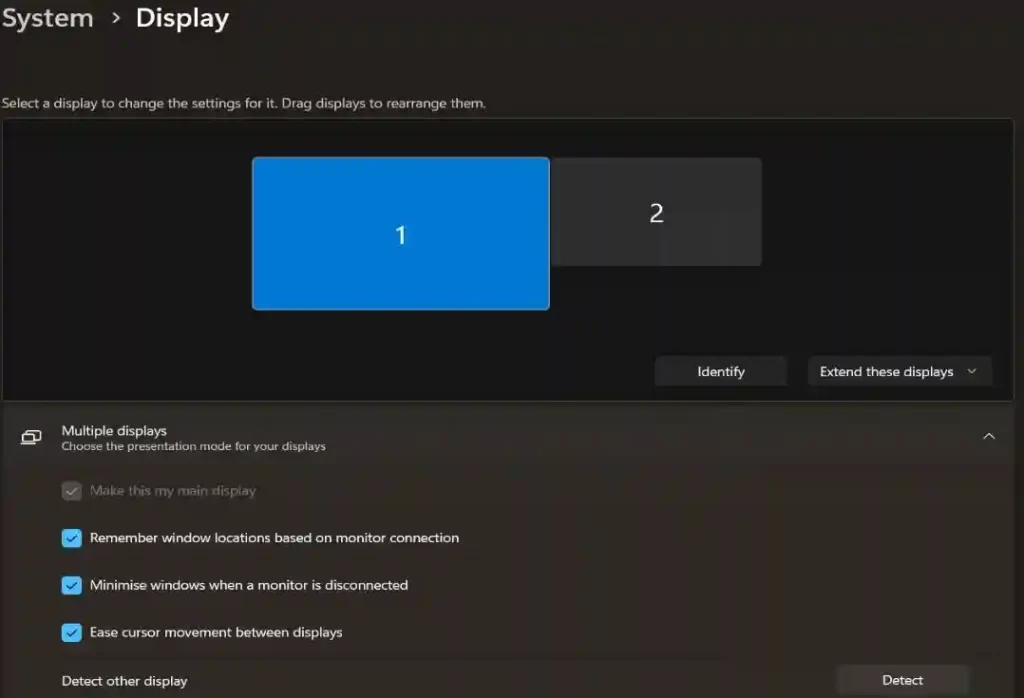
To enable Secondary Display, first you have to change the PC display output to Extend Mode.
PressWin + P on keyboard then select Extend Mode
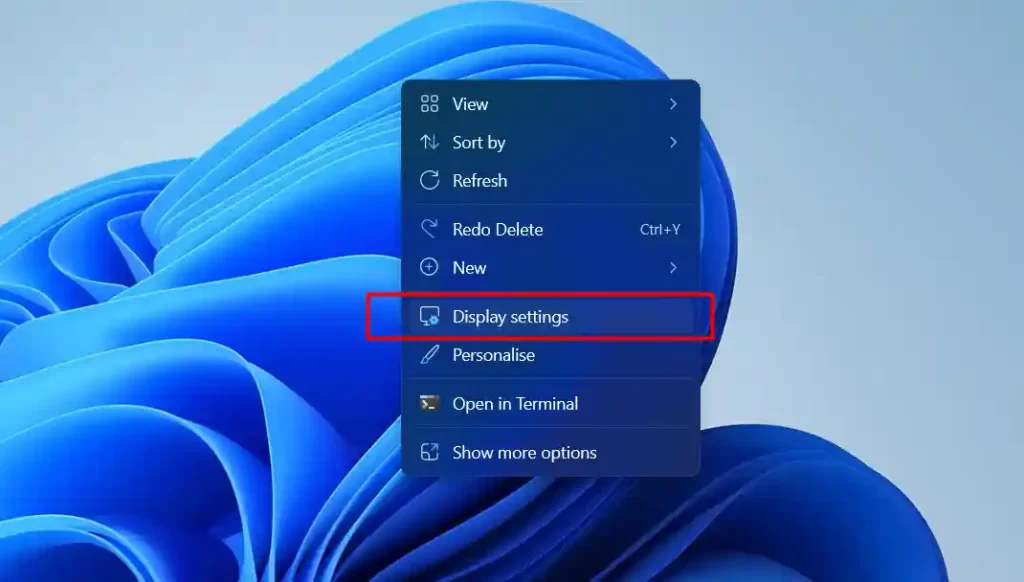
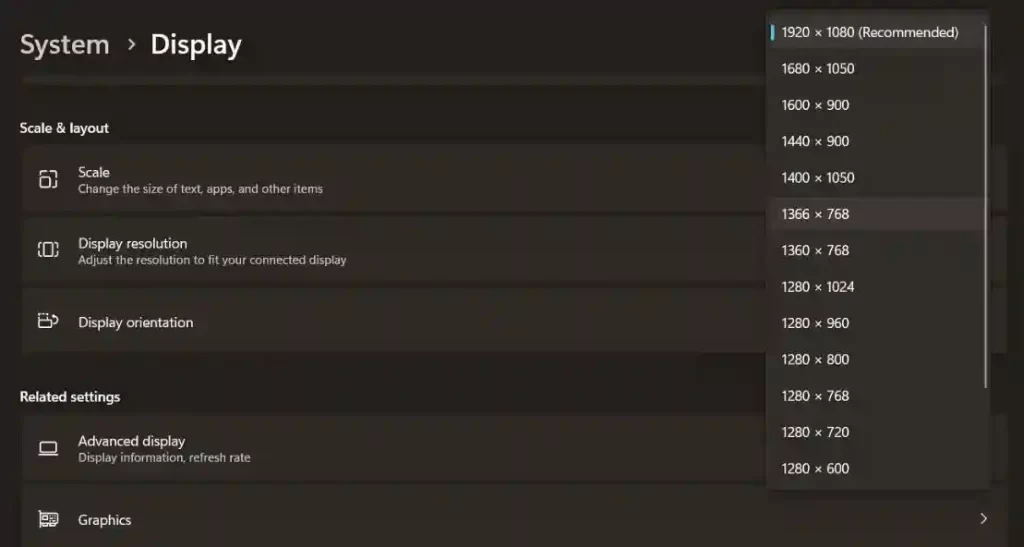
Now right click on Desktop Window and select Display Setting
Click on Display1 and scroll down to select Display Resolution as 1366 x 768
Click Ok
Configure Wireless Remote
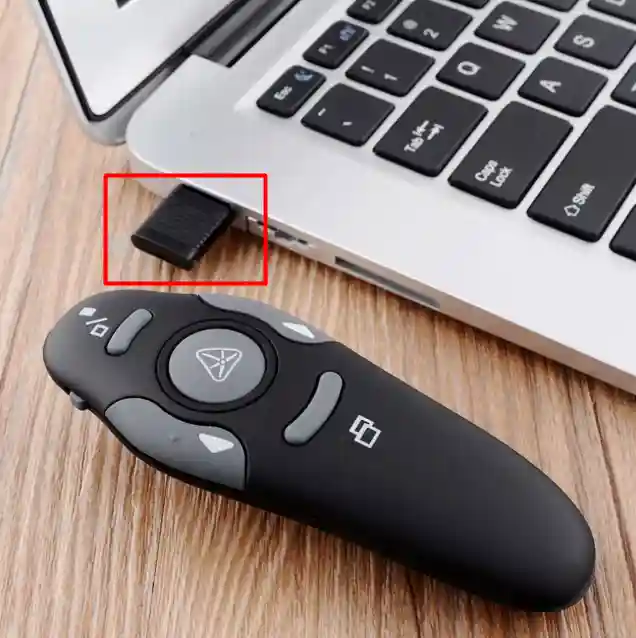
Connect the receiver of Remote to your PC
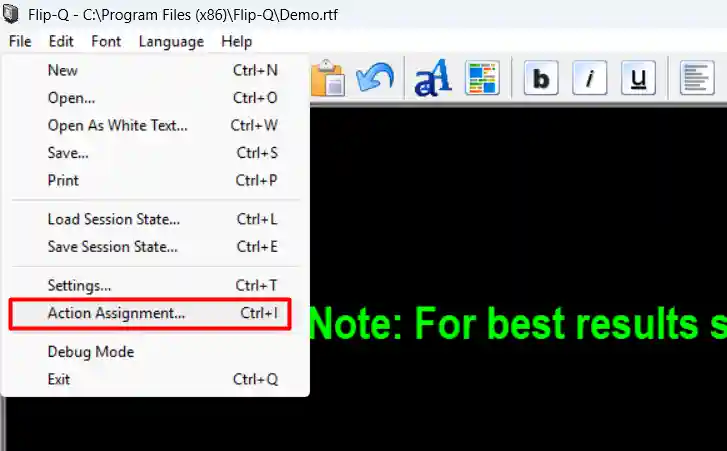
Open the software and click on File menu, then select Action Assignment
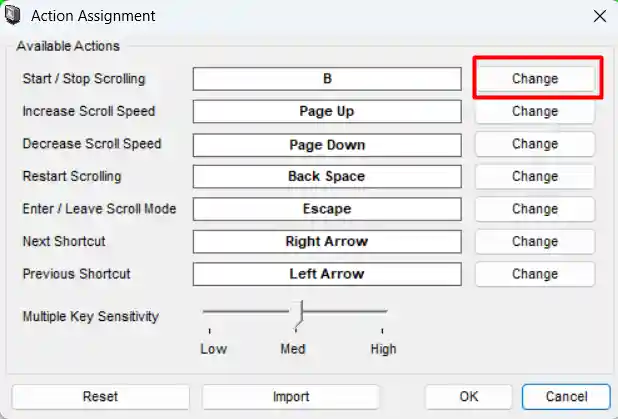
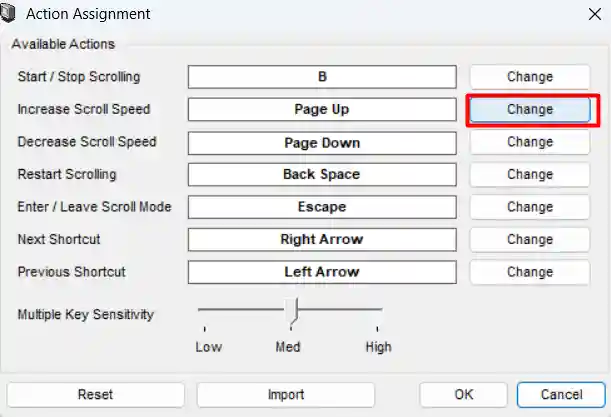
You will see the below dialogue box. Click on Change button in front of Start/Stop scrolling
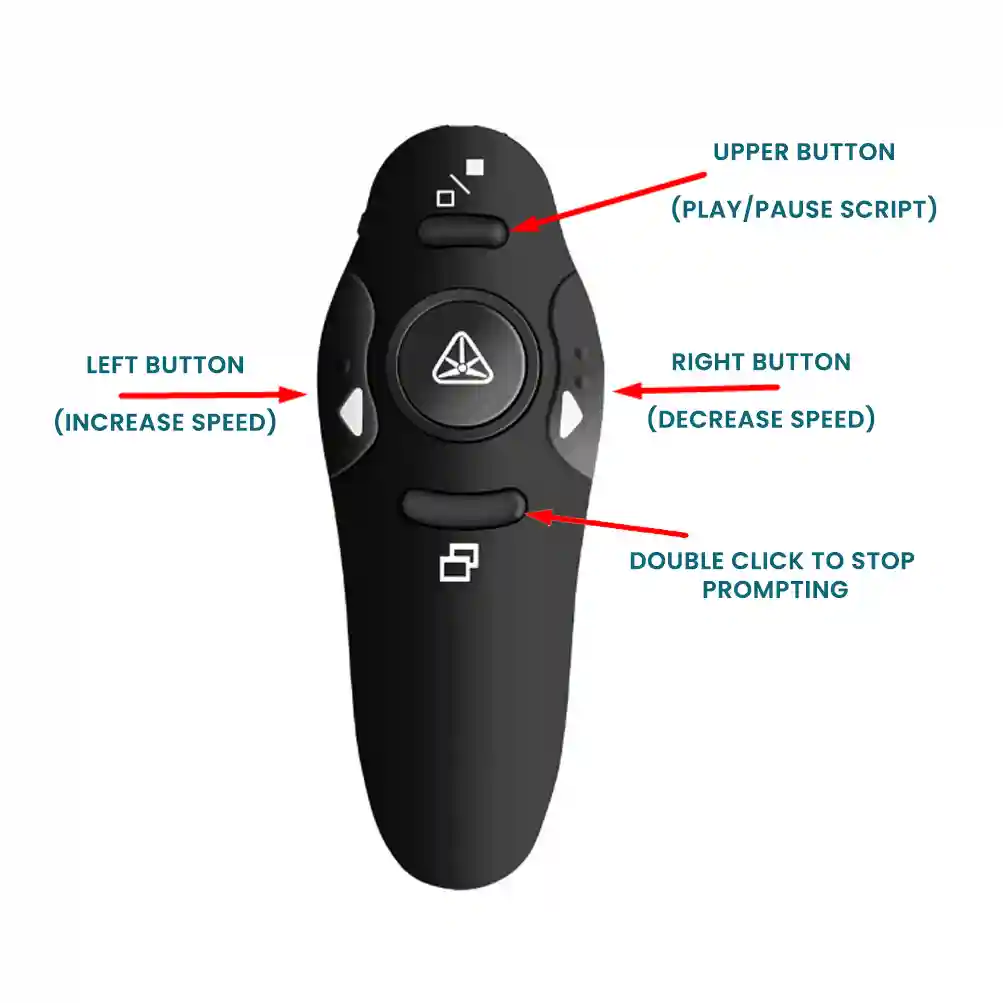
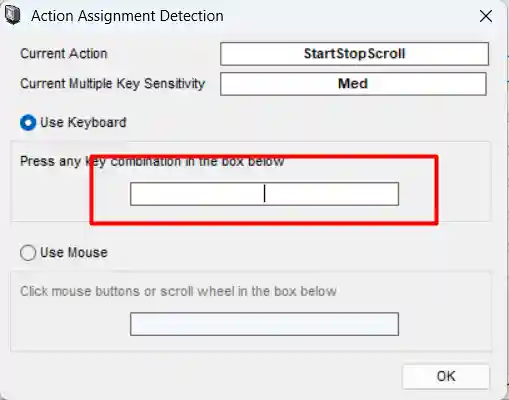
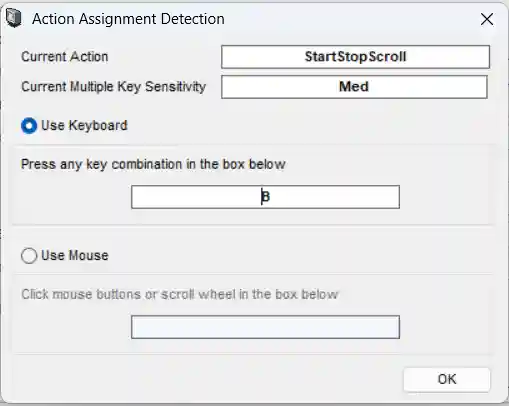
Now click inside Textbox (under Use Keyboard) and press “Upper Button of Remote” you will see B in the textbox. Now click OK
Similarly click on Change button in front of Increase Scroll Speed, and click in the Use Keyboard text box, press the Left Button of remote. You will see PageUp in the textbox.
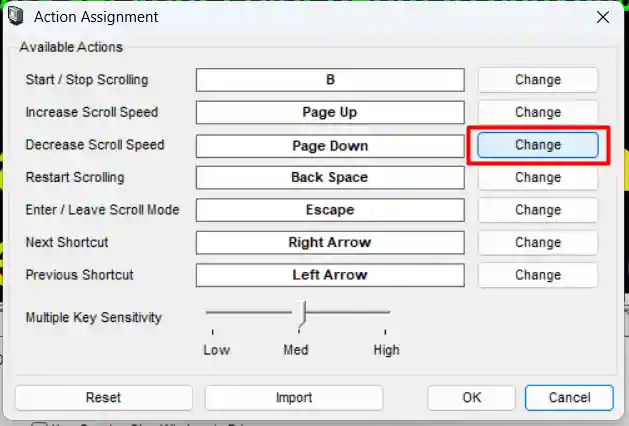
Click on Change button in front of Decrease Scroll Speed, and click in the Use Keyboard text box, press the right button of remote
Play the Prompting Script
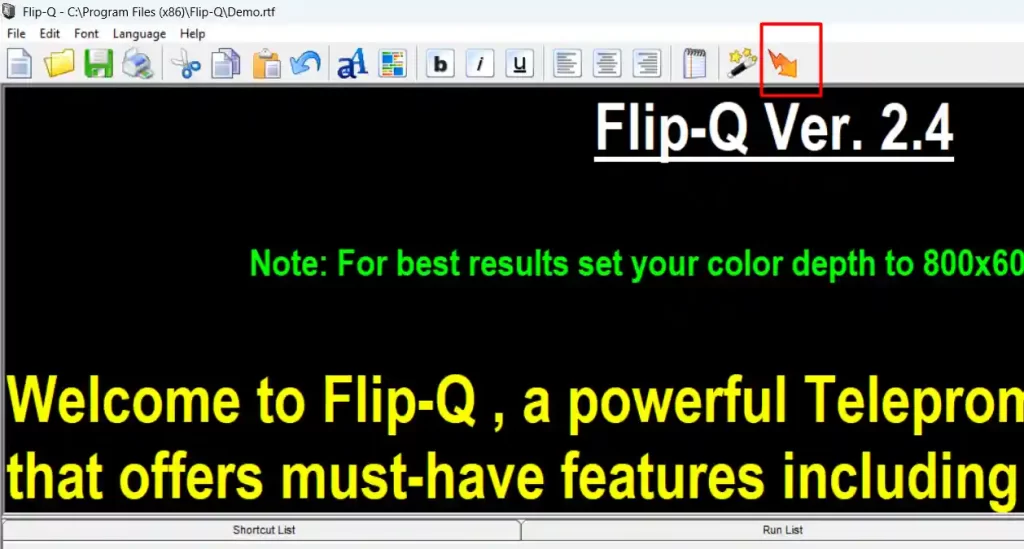
Click on this thunder arrow to play the script as shown in below image